Rayan Farouk
Picture this. A patient opens your clinic website at 6:40 p.m. and books a 5:00 p.m. check-up for tomorrow. Two minutes later, your receptionist gives the same slot to someone calling the front desk. Both patients believe they have an appointment. Only one can see the doctor.
That is a double booking, and it is one of the fastest ways to turn a good online booking tool into a source of complaints. The second patient waits, gets squeezed in or is sent home. The doctor runs late. The front desk spends the morning apologising.
In our earlier post, Online Booking as a No-Show Reduction Tool for UAE Clinics, we explained how self-scheduling and reminders cut empty slots, and we warned that a booking tool sitting apart from your EMR creates a second schedule. The same risk came up when we looked at WhatsApp chatbots: a bot that books appointments is only safe if it sees the same calendar as everyone else.
This post goes one level deeper. It explains, in plain language, how a public booking widget stays in step with your internal calendar, what can go wrong, and what to set up so two patients never hold the same slot. If you understand how a cinema sells its last seat, you can follow everything below.
Why double bookings happen
Software should make double bookings impossible, yet they still happen. Almost every case traces back to one of three causes.

1. Two calendars instead of one
Many clinics add a booking page that keeps its own list of free slots, separate from the calendar reception uses. Someone then copies bookings from one list to the other by hand. Every copy is a chance for a mistake, and every delay is a window where the two lists disagree.
2. The gap between “looks free” and “is booked”
Even with one calendar, there is a gap between a patient seeing a free slot and confirming it. They may stare at the screen for three minutes while checking their own diary. If someone else takes the slot meanwhile and the system does not check again at the final click, both people get confirmed.
Think of the last cinema seat. Two people see seat H7 as free and both click. A good ticket system lets one through and tells the other, “Sorry, that seat was just taken.” A poor one sells it twice.
3. Bookings that skip the system
A phone booking written on paper, a walk-in squeezed in by a helpful receptionist, a follow-up agreed in the corridor: none of these touch the software, so the slot still looks free online.
The short version: double bookings come from out-of-date copies of the calendar, from the gap between viewing and confirming a slot, and from bookings that never enter the system.
The golden rule: one calendar, one source of truth
Your clinic should have exactly one master calendar, normally inside your EMR, and every channel should read from it and write to it. In practice:
- The website widget keeps no list of its own. Each time, it asks the master calendar, “What is free right now?”
- The WhatsApp chatbot does the same and never remembers yesterday’s availability.
- Reception books on the same calendar the doctors see.
- Google Business Profile links, QR codes and social media links lead to the same booking page.
With one calendar, a slot can be taken in only one place, and the system can simply refuse a second request for it.
How real-time sync works, in simple terms
Real-time sync means that when something changes in one place, every other place learns about it within a second or two, not at the end of the day. There are three common ways to build it.
Method 1: A live check (the safest)
The widget holds no copy of your calendar. When a patient opens the page, it asks the EMR for free slots at that moment. When the patient confirms, it sends the booking straight to the EMR, which decides whether the slot is still free. It is like phoning the restaurant to ask if a table is free instead of reading last week’s printed list.
Method 2: Instant updates
Some systems keep a copy of availability so pages load faster. To keep it accurate, the EMR sends a message the moment anything changes: a new booking, a cancellation, a doctor on leave. Developers call this a “webhook”. It works well when built carefully, but a lost message leaves the copy stale, which is why the final check described below matters.
Method 3: Checking every few minutes (the riskiest)
The booking tool asks the EMR for an update on a timer. If it refreshes every five minutes, a taken slot can stay visible for up to five minutes. On a busy day, that is plenty of time for two patients to collide.
| Method | How it works | Double-booking risk |
|---|---|---|
| Live check | Widget asks the EMR for free slots every time | Lowest: nothing stored to go stale |
| Instant updates | EMR notifies the booking tool of every change | Low, if messages are reliable and a final check exists |
| Timer refresh | Booking tool refreshes every few minutes | Higher: slots can look free after being taken |
Three safety nets every booking flow needs
1. Hold the slot while the patient types
The moment a patient taps a time, the system should place a temporary hold on it, usually five to ten minutes. The slot disappears from every other screen, including reception. If the patient completes the booking, the hold becomes an appointment. If they wander off, it expires and the slot returns automatically. It is the same as a ticket site saying, “We are holding your seats for ten minutes.”

2. Check again at the final click
When the patient presses “Confirm”, the EMR should check whether the slot is still free and save the booking in one single step. If the check and the save are two separate steps, another booking can slip in between them. Developers call this a “race condition”, and it is a classic cause of double bookings in homemade tools.
3. A friendly message when the slot is gone
Even a perfect system sometimes loses a race between two patients. What matters is how it treats the loser. A good message says the slot was just taken, then offers the next three times with the same doctor, or the same time with another doctor. A vague error that sends the patient back to the start loses the booking.
One booking, step by step
| Step | What the patient sees | What happens behind the scenes |
|---|---|---|
| 1. Choose service and doctor | Services and doctors for the chosen branch | Widget reads them from the EMR |
| 2. Pick a time | Free slots for the coming days | EMR returns only slots free right now |
| 3. Slot is held | “We are holding this time for 10 minutes” | Slot is locked on every channel |
| 4. Enter details | A short form | EMR matches an existing patient or creates a record |
| 5. Confirm | Confirmation screen | EMR checks the slot and saves in one step |
| 6. Confirmation sent | Doctor, branch, date, time, map link | Status set to “booked” |
| 7. Reminders | Confirm, reschedule or cancel option | Triggered by the appointment record; a cancellation reopens the slot |
Steps 3 and 5 are the ones that prevent double bookings. If your setup has neither, start there.
Set your calendar rules before going live
Online booking does not create scheduling problems. It exposes the ones you already have. A widget follows your calendar literally, so review these settings first.
- Appointment lengths and buffers. If a cleaning is set to 15 minutes but takes 30, the system will offer slots you cannot honour. Add buffers for room turnover and notes.
- Working hours, breaks and leave. Enter lunch, prayer breaks, public holidays and approved leave in the EMR. If a doctor’s leave lives only on a whiteboard, the widget keeps offering their slots.
- Rooms, chairs and equipment. A free doctor does not mean a free dental chair or scanner. Make shared resources bookable, not just doctor time.
- Minimum notice and booking horizon. Decide how close to the visit a patient may book, often a few hours, and how far ahead. Distant appointments become no-shows more often, as our previous post explained.
- Reserved slots. If you get many walk-ins, keep part of each doctor’s day for reception use. This keeps the online calendar honest and removes the temptation to squeeze people into slots that look open.
- Branches. Link every doctor and room to a branch, and let patients pick the branch first. A doctor who splits the week between two branches needs a schedule showing where they are each day.
Tricky situations, and how a connected system copes
Reception and a patient book the same slot together
Both go through the master calendar, so only one request wins. The other sees a “just taken” message with alternatives. Neither side has a back door.
A patient reschedules from a reminder
The old slot should reopen the moment the new one is confirmed, and the old reminders should stop. Otherwise you lose a refillable slot, or the patient turns up at the wrong time.
A doctor falls ill
Blocking the day in the master calendar should remove every online slot for it immediately, and list the affected appointments in one place so the front desk can contact patients quickly.
The same patient books twice
Patients sometimes try the website and WhatsApp, or retry because no confirmation arrived. The EMR should recognise them by mobile number and warn about the existing appointment instead of creating a duplicate.
The connection drops after “Confirm”
The confirmation message should go out as soon as the booking is saved, and a page reload should show the same result. That stops anxious patients from booking twice.
Paper diaries and corridor agreements
No software can fix a paper diary. Keep the rule simple: if it is not in the calendar, it does not exist. Train the team to enter every appointment, including quick follow-ups agreed in the consultation room.
How this works inside Balsam Medico
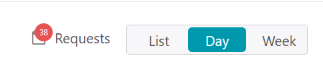
In Balsam Medico, patients can book through WhatsApp or through your website, and both channels lead to the same place. Each online booking arrives as an appointment request on the Appointment Requests page. From there, your receptionist can confirm the request, reschedule it to a better time, or cancel it, all without leaving the system. Because WhatsApp and website requests land in one list and are handled against one calendar, the front desk never has to compare two schedules or copy details between them. Every request is reviewed against the same calendar your doctors use, which is exactly the “one calendar, one source of truth” rule described above.
Common mistakes to avoid
- Running a separate calendar for the widget. This is the biggest cause of double bookings. Every copy needs maintaining, and every copy can drift.
- Syncing only once or twice a day. Availability changes every few minutes in a busy clinic, so a slow sync is almost the same as no sync.
- Letting each channel have its own rules. If the website allows booking two hours ahead and WhatsApp allows ten minutes, patients and staff get confused. Use one set of rules everywhere.
- Launching without testing. Most double-booking problems appear in the first week of live use, when they are most embarrassing and expensive to fix.
Test before you launch
Our earlier post suggested testing real scenarios. For double bookings, ask two people to run these tests at the same time on different devices, and write down each result.
| Test | What should happen |
|---|---|
| Two people book the same slot within seconds | One succeeds; the other gets a clear message and alternatives |
| Reception books a slot while a patient fills in the form for it | The hold or booking wins, and the patient is told clearly |
| A patient leaves the form idle for 15 minutes | The hold expires and the slot returns |
| A booking is cancelled from a reminder | The slot reopens online within seconds |
| A doctor’s day is blocked | Online slots for that day vanish immediately |
| Two doctors need the same room at the same time | The second booking is refused or moved |
Repeat the tests on mobile and desktop, in Arabic and English, and through every channel you plan to offer.
Keep watching after launch
Review a few simple numbers monthly for the first three months.
- Double-booking incidents. The target is zero. Ask the front desk to log every case and the channel it came from.
- Sync delay. Book through reception and time how long the slot takes to vanish from the website. It should be a second or two.
- Abandoned bookings. Many patients leaving after the “slot just taken” message suggests weak alternatives or too short a hold.
- Slot refill rate. The share of cancelled slots rebooked before the visit. Live sync makes quick refills possible.
Questions to ask your software provider
- Does the widget keep its own copy of availability, or check the master calendar every time?
- If it keeps a copy, how quickly does it update after a change?
- Is a slot held while the patient fills in details, and for how long?
- Is availability checked again at confirmation, together with saving the booking?
- Do the website, WhatsApp chatbot and reception share one calendar and one set of rules?
- Can rooms and equipment be booked, not just doctors?
- Is there a log showing who changed each booking and through which channel?
Clear, confident answers are a good sign. Vague ones suggest the booking tool and calendar are not as closely connected as they should be.

Bringing it together
Double bookings are not bad luck. They happen when a clinic has more than one version of its schedule, checks availability too late, or takes bookings outside the system. The fix is just as clear: one master calendar, real-time sync across every channel, a hold while the patient types, a final check at the click, and a friendly message for whoever loses the race.
Get this right and the gains we described in our post on online booking and no-shows become easier to reach. Patients book at times that suit them, reminders keep appointments in mind, cancelled slots get refilled, and your front desk welcomes patients instead of untangling clashes.
A good place to start is a short audit: count how many calendars your clinic really uses, find out how fast a change on one channel reaches the others, and run the testing table above.
Want to see how real-time scheduling works inside your EMR?
If you are reviewing how your clinic handles online booking, calendar sync and reminders, we, the Balsam Medico team, are happy to walk you through how appointment scheduling fits into a clinic management and EMR workflow.

Connect with Us
Ready to embark on this exciting journey? Contact us today:
📍 Dubai, United Arab Emirates – Tel: +971 56 640 9602
📍 Khartoum, Sudan – Tel: +249 91 273 1048
Explore Balsam Medico and discover a world of efficient clinic management at www.balsammedico.com. Together, let’s reduce fines, elevate efficiency, and embrace a new era of dental healthcare.
One last thing..
PS: We built Balsam Medico to be the best software for clinics in UAE and the middle east. It is powerful, flexible, and most importantly, very easy to use.
If you have two minutes, see how it works.
This is the main landing page to learn more.